

Product Updates

Product Spotlight: New Metrics Tab in Quick Profile

Explore Healthie's new Metrics tab - client metrics are displayed in the Quick Profile, so providers can chart and reference clinical data without switching screens.

Jenny Donahue, PT DPT
Published on May 26, 2026
Updated on May 26, 2026

For providers, the charting session is where clinical intuition meets evidence. The right data at the right moment changes everything.

When key client data lives on a different screen, that synthesis gets interrupted and every interruption costs time and focus.

Healthie's new Metrics tab in the Quick Profile fixes that.

What's New

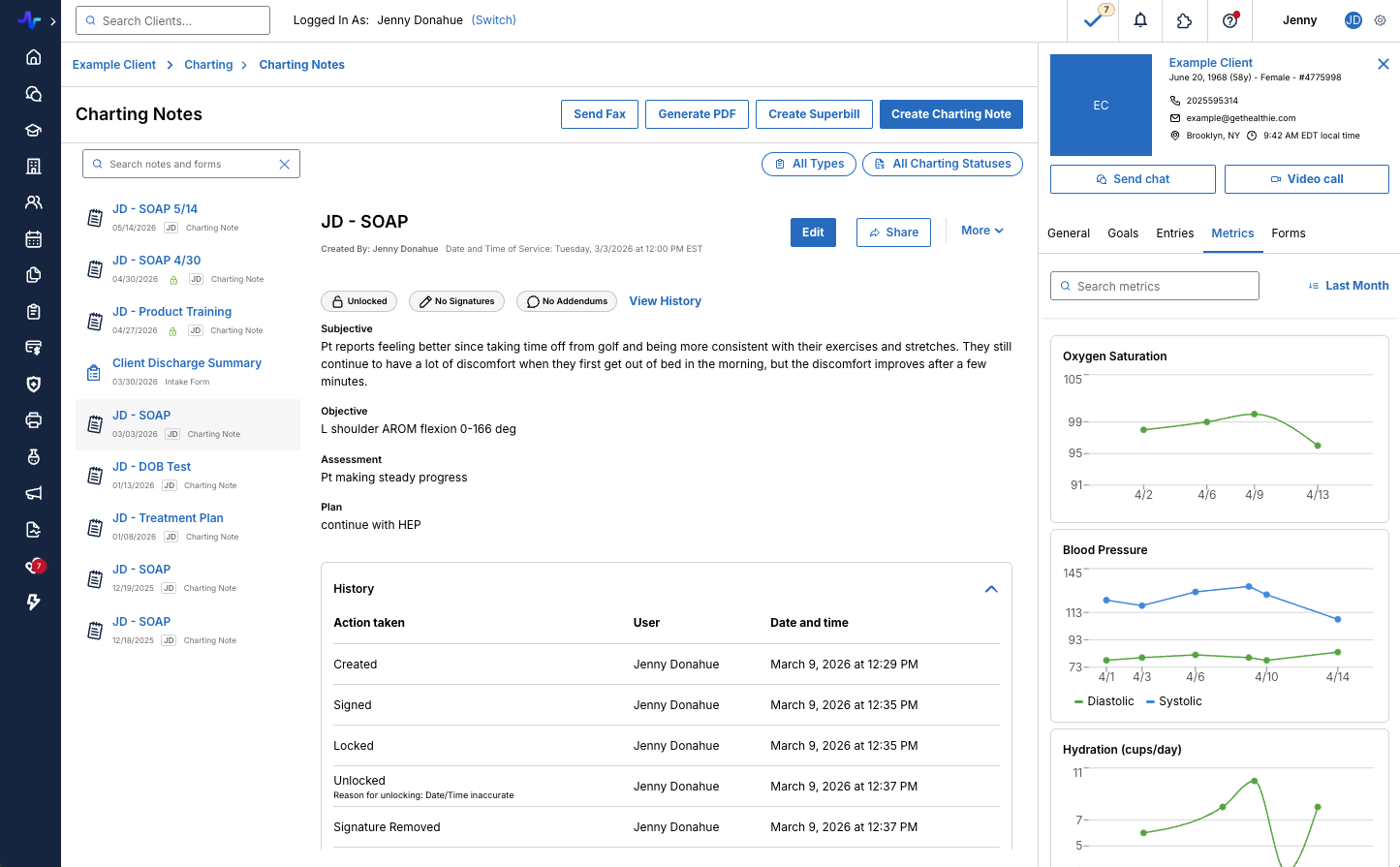
Providers can now access client metrics directly within the Quick Profile - without ever leaving their clinical workflow. All configured metrics, including standardized outcome measures like the PHQ-9 and health indicators like blood pressure, are displayed as interactive line graphs. The metrics tab gives providers an at-a-glance view of trends over time during clinical sessions. 

This update is available to all Healthie customers and requires no additional configuration. Metrics will display automatically based on your existing journal entry, group, and individual client-level settings.
📈 Key Highlights

  • Stay in context while charting: the new Metrics tab is built directly into the Quick Profile, so providers can reference historical client data without leaving their workflow.
  • Visualize trends over time: metrics display as interactive line graphs, making it easy to identify patterns at a glance.
  • Search and filter with precision: search for specific metrics by name, or apply a date range filter to focus on the most clinically relevant period.
  • Drill into the details: hover or click on any data point to surface the exact value and date, so providers can cite accurate information.
  • Clear empty states: when no metrics are configured for a client, a clear empty state is displayed so providers always know where things stand.

Who Benefits

This update is especially valuable for all providers and practices that regularly track clinical scales or biometric data. Administrators will see no changes to their configuration workflow, and clients benefit from providers who have more clinical context, faster.

How to Get Started

No action is required to enable the Metrics Tab - you can explore it today in the Quick Profile. To learn more about configuring patient metrics in Healthie, visit our Help Guide.

Launch, grow & scale your business today.

Product Updates

Product Spotlight: New Metrics Tab in Quick Profile

Explore Healthie's new Metrics tab - client metrics are displayed in the Quick Profile, so providers can chart and reference clinical data without switching screens.

For providers, the charting session is where clinical intuition meets evidence. The right data at the right moment changes everything.

When key client data lives on a different screen, that synthesis gets interrupted and every interruption costs time and focus.

Healthie's new Metrics tab in the Quick Profile fixes that.

What's New

Providers can now access client metrics directly within the Quick Profile - without ever leaving their clinical workflow. All configured metrics, including standardized outcome measures like the PHQ-9 and health indicators like blood pressure, are displayed as interactive line graphs. The metrics tab gives providers an at-a-glance view of trends over time during clinical sessions. 

This update is available to all Healthie customers and requires no additional configuration. Metrics will display automatically based on your existing journal entry, group, and individual client-level settings.

📈 Key Highlights

  • Stay in context while charting: the new Metrics tab is built directly into the Quick Profile, so providers can reference historical client data without leaving their workflow.
  • Visualize trends over time: metrics display as interactive line graphs, making it easy to identify patterns at a glance.
  • Search and filter with precision: search for specific metrics by name, or apply a date range filter to focus on the most clinically relevant period.
  • Drill into the details: hover or click on any data point to surface the exact value and date, so providers can cite accurate information.
  • Clear empty states: when no metrics are configured for a client, a clear empty state is displayed so providers always know where things stand.

Who Benefits

This update is especially valuable for all providers and practices that regularly track clinical scales or biometric data. Administrators will see no changes to their configuration workflow, and clients benefit from providers who have more clinical context, faster.

How to Get Started

No action is required to enable the Metrics Tab - you can explore it today in the Quick Profile. To learn more about configuring patient metrics in Healthie, visit our Help Guide.

Scale your care delivery with Healthie+.