



ICD-10 Coding in Healthie: Faster Search, Cleaner Claims
Healthie's ICD-10 tools help providers code accurately and billers submit clean claims. Explore diagnosis coding across charting, profiles, and billing.

Accurate diagnosis coding is one of the most important parts of running a financially healthy practice. ICD-10 codes tell insurance payers what conditions you're treating, justify medical necessity, and directly affect whether your claims get paid. With tens of thousands of codes to navigate and billing terminology that rarely matches clinical language, coding accurately and efficiently is often easier said than done.
This guide walks through how Healthie supports ICD-10 coding across your practice, from where codes live in the platform to how they move through a billing workflow, and how to avoid the most common coding mistakes that lead to claim denials.
Why ICD-10 codes matter for your practice
Every billable clinical encounter requires at least one ICD-10 code on the claim. Payers use those codes to determine medical necessity, authorize services, and process reimbursement.
For providers, that means selecting the most specific, accurate code supported by your documentation. For billers and practice admins, it means having visibility into what was coded before claims go out the door. When the two sides stay aligned, your practice gets paid faster and with fewer denials.
Where ICD-10 codes live in Healthie
Healthie surfaces diagnosis codes in three places across the platform, keeping clinical and billing workflows connected.
1. Client Profile: Diagnosis Details
Each client's profile includes a Diagnoses section where active ICD-10 codes can be stored and maintained over time. This gives providers and care team members a persistent view of a client's documented conditions across visits, separate from any individual chart note. Billers can also use this section to verify what's on file before submitting a claim.
2. Charting: Diagnosis List Module
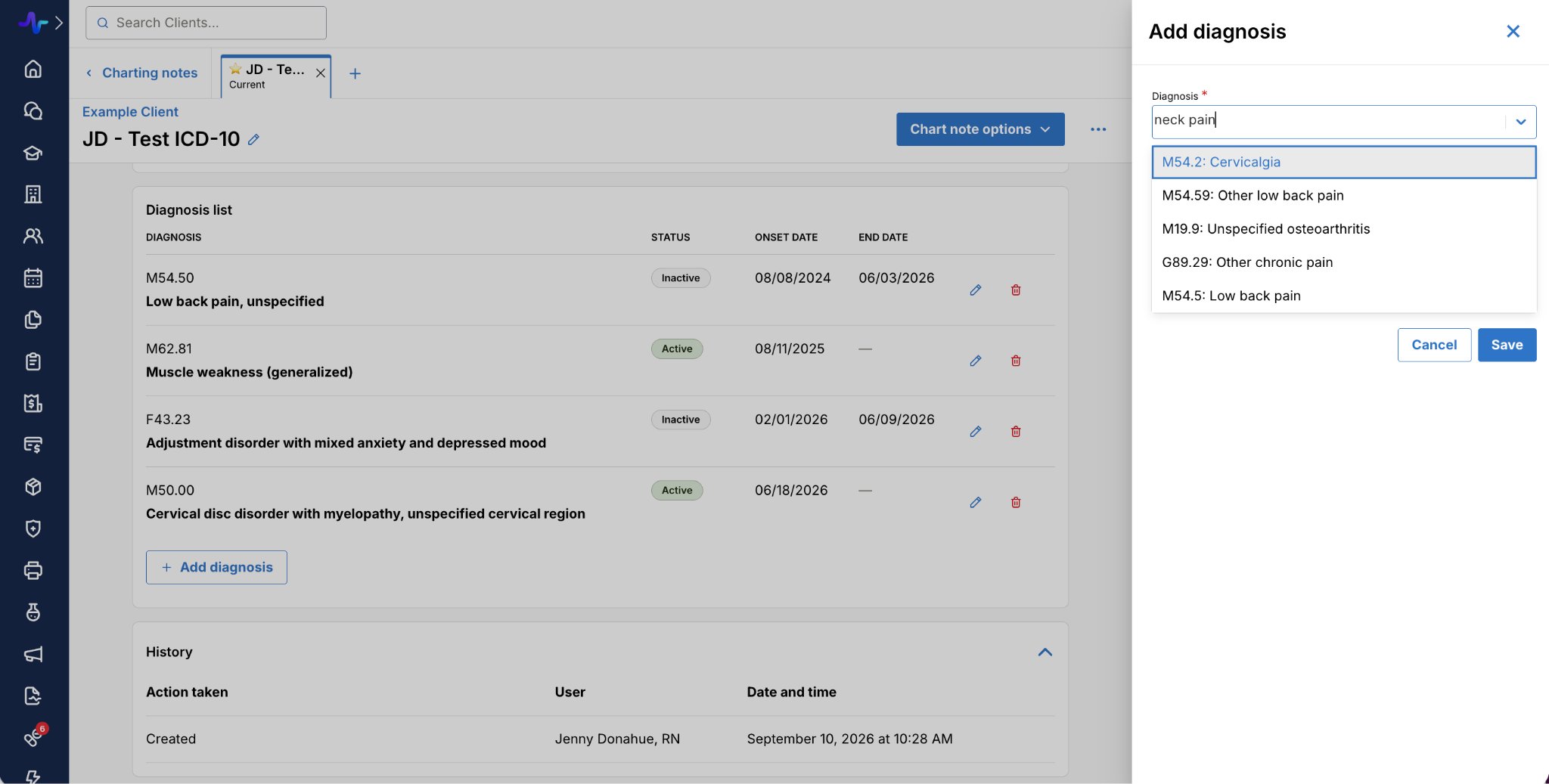
During a clinical session, providers can search for and add ICD-10 codes directly inside a chart note using the Diagnosis List module. Codes added here are tied to the specific encounter and flow automatically to billing. This is where most providers interact with diagnosis coding in their clinical workflow.
3. Superbills and Claims
When a superbill or claim is generated, the diagnosis codes from the relevant chart note populate automatically. Billers can review them before submission, and clients will see the diagnosis codes on their superbill. As charting drives what appears on the claim, accuracy at the point of care is essential.
{{free-trial-signup}}
How to add and manage diagnosis codes in Healthie
Setting Up Your Charting Template
The Diagnosis List is a module you can add to a charting template using Healthie's Form Builder. To set it up:
- Navigate to Forms, then create a new form or open an existing charting template to edit.
- Find the Diagnosis List field in the Question Bank under Client Info.
- Drag it onto your charting template.
- Click "..." on the Diagnosis List module and select Edit. From there you can turn on the option to hide inactive diagnoses in chart notes, which keeps the view clean during sessions.
Once the template is set up, you'll select it when starting a chart note. The Diagnosis List field renders as an editable table that automatically pulls in any diagnoses already on the client's profile.
Adding a Code During a Session
- Open a chart note using a template that includes the Diagnosis List field.
- Search by code number, condition name, acronym (i.e. ADHD) or clinical term. Your saved ICD-10 Favorites appear first in the dropdown.
- Select the most specific code that matches the documented condition.
- Add multiple codes if the visit covers more than one condition.
- Update statuses and dates directly in the table as needed.
Additions and updates made in a chart note sync automatically to the client's profile.
Note: removing a diagnosis from a chart note only removes it from that note and does not delete it from the client's profile.
Managing codes on the Client Profile
Diagnosis details are stored at Client Profile > Actions > Client Info > Diagnoses. Here you can manually add, update, or remove codes, and adjust the Onset Date. The First Symptom Date generally is required when submitting CMS-1500 claims to insurance. When a diagnosis is marked active, the End Date field is automatically disabled.
If you add or update a diagnosis through a chart note or claim form, it will populate in the client's profile automatically. You can also add codes manually here at any time.
Coding best practices to reduce claim denials
Accurate coding helps ensure you're reimbursed for the full value of the care you provide, and protects your practice from audits.
Here are 4 best practices for accurate coding:
Use the most specific code available. ICD-10 has a high degree of granularity, often with dozens of codes within a single condition category. Payers expect the most specific code supported by your documentation. Selecting a general code when a more specific one exists is one of the most common reasons claims are flagged or denied.
Make sure diagnosis codes support medical necessity. For many service types, the procedure code alone is not enough. The payer needs to see that the diagnosis justifies the service. The connection between what's documented in the chart and what's on the claim has to hold up under review.
Match CPT and ICD-10 codes carefully. Incompatible code combinations, where the diagnosis does not align with the procedure, will trigger rejections. Double-check that the codes you're submitting together make clinical and billing sense.
Keep diagnoses consistent across encounters. If a client's active conditions change but the codes in charting don't reflect that, your documentation becomes inconsistent. Keeping the Diagnoses section of the client profile current reduces the chance that an outdated code ends up on a claim.
Smarter ICD-10 search in charting
Finding the right code quickly has always been its own challenge. Providers work fast, think in clinical terms, and don't always recall the exact billing language an ICD-10 label uses. Until recently, any mismatch between what a provider typed and how a code was labeled could mean a failed search, a wrong selection, or time lost hunting for the right result.
Healthie's diagnosis code search in charting now includes two improvements that make that process faster and more forgiving:
Fuzzy search with typo tolerance catches common typing errors without requiring an exact match. A provider who types "ADDH" instead of "ADHD" will still surface the right codes.
The Impact: This matters most during high-volume charting sessions where speed is constant pressure.
Synonym matching expands your search before it runs, so clinical language maps to billing language automatically. Searching "hyperactivity" now returns attention-deficit codes, even though that word doesn't appear in the ICD-10 label.
The Impact: Providers don’t have to memorize billing terminology to code accurately or efficiently.
How Healthie supports your billing workflow end to end
Diagnosis coding is one piece of a larger billing picture. Healthie's all-in-one EHR and billing platform connects the clinical and financial sides of your practice so information flows without manual re-entry.
With Healthie, you can:
- Store and manage active ICD-10 codes on each client's profile
- Search and add diagnosis codes directly inside chart notes
- Generate CMS-1500 claims and superbills with diagnosis codes pre-populated from charting
- Track claim status and manage denials from within the platform
- Give billing staff access with customizable account permissions
For a detailed walkthrough of the Diagnosis Module and how diagnosis codes work in charting and the client profile, see the Healthie Help Center documentation.