
Automate by Healthie
In beta
Stop chasing manual follow-ups. Start describing the workflow.
Automate by Healthie lets your team build trigger-based clinical and administrative automations in plain language. They run inside Healthie, so there are no third-party tools and no external webhooks to manage.
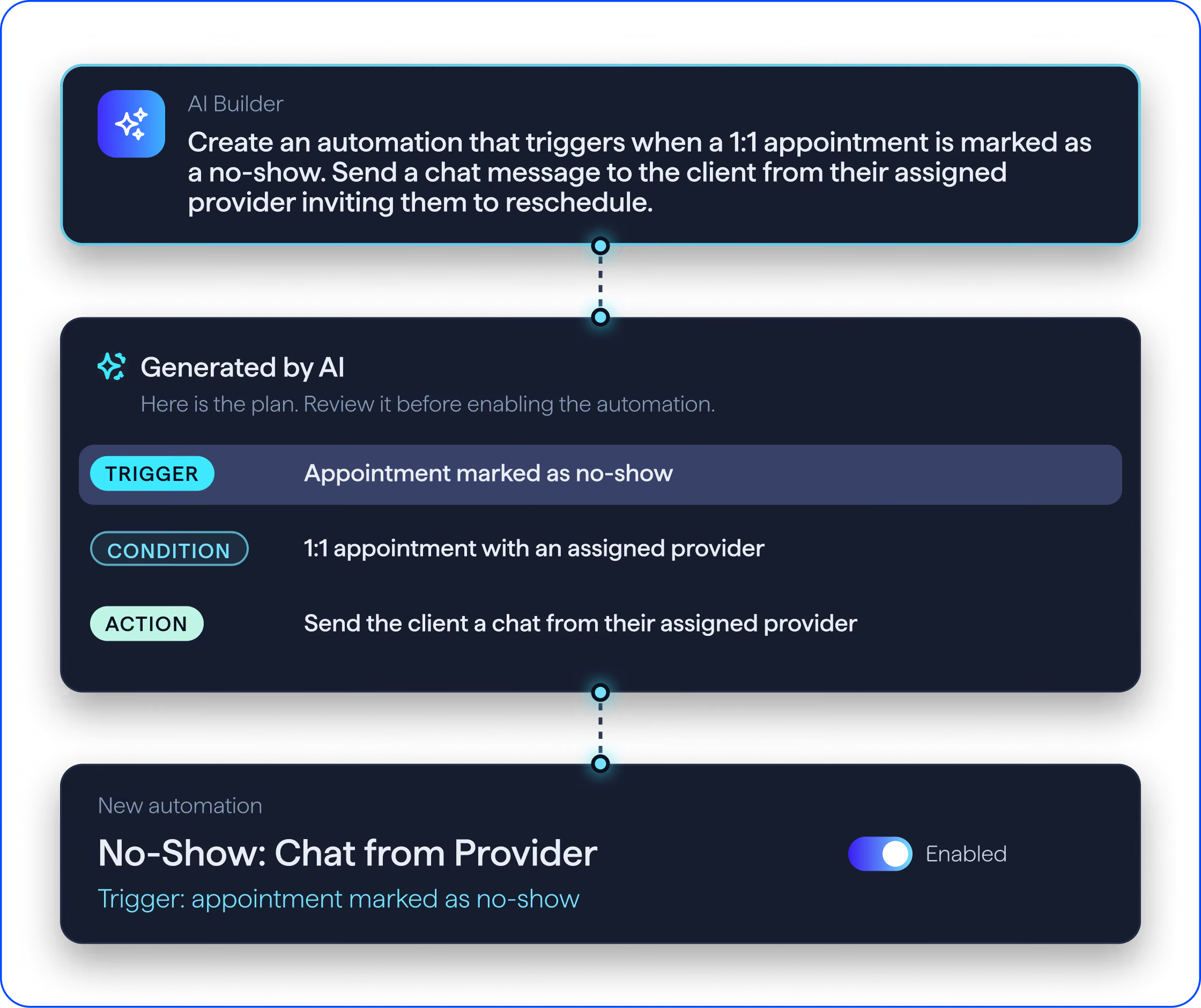
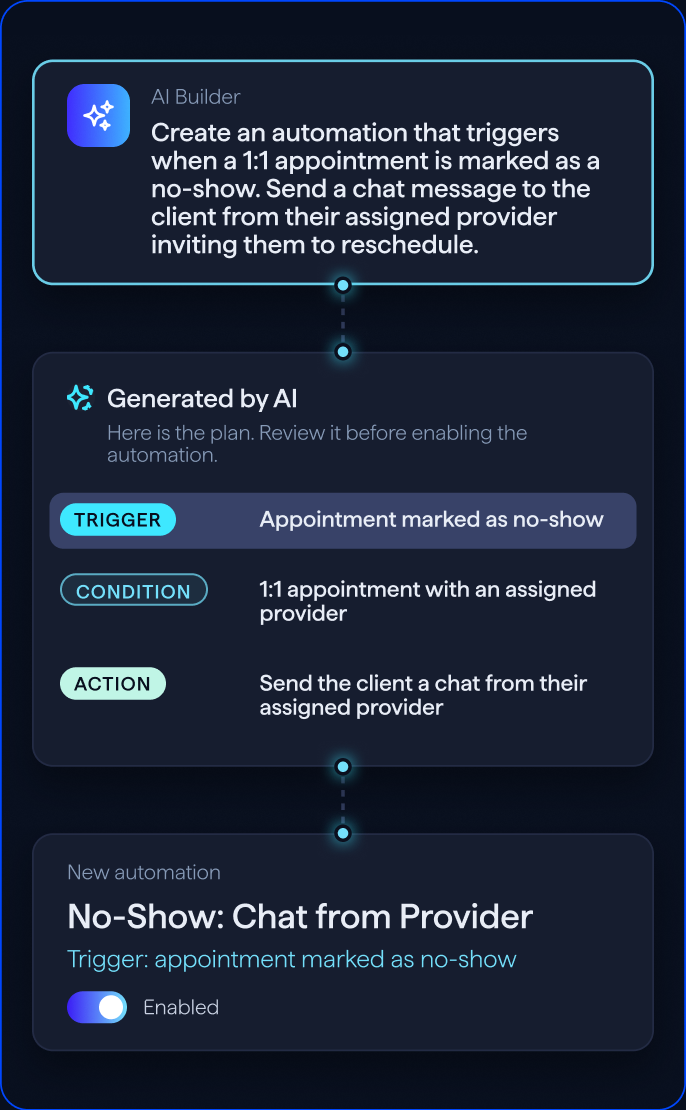
Create an automation that triggers when a 1:1 appointment is marked as a no-show. Send a chat message to the client from their assigned provider inviting them to reschedule.
Manual vs. automated
Manual follow-up depends on someone noticing.
Automations start the moment it happens.
When a task depends on someone spotting an event, it can slip. An automation starts as soon as the trigger happens in Healthie and follows the same steps each time.
Manual follow-up
Starts
When someone notices the event
Consistency
Depends on who handles it
Changing it
Retrain the team
Visibility
Hard to see what happened
Tools
May rely on outside tools or webhooks
Automate
Starts
Automatically, when the trigger happens in Healthie
Consistency
The same steps, every time
Changing it
Describe the change and use Edit with AI
Visibility
See runs, last run, and status on the Automations page
Tools
Runs within Healthie
Workflows by team
Workflows for every team in your organization
Start from a sample prompt, then shape it to the way your team works.
Scheduling and front desk teams
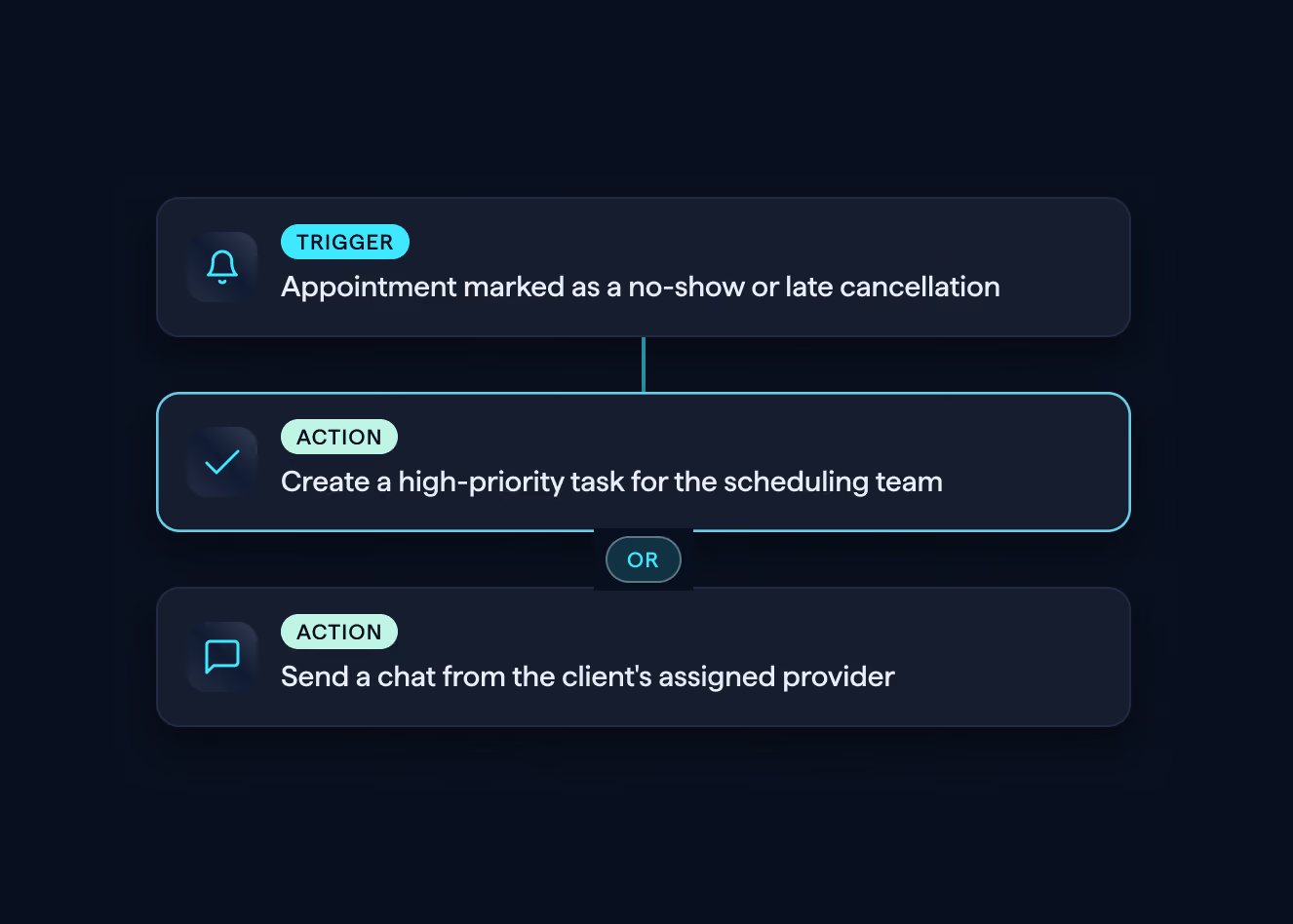
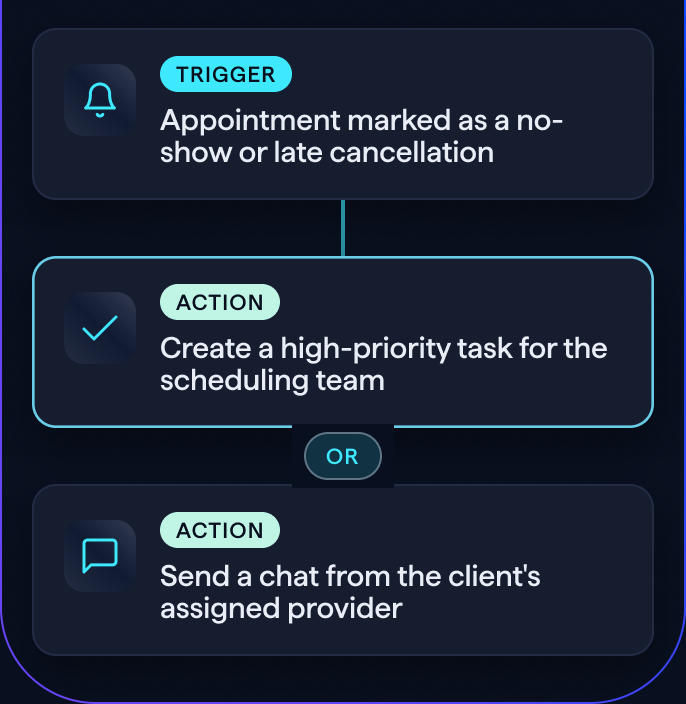
When an appointment is marked as a no-show or late cancellation, create a high-priority task for the scheduling team to reach out and reschedule. Or send a chat from the client's assigned provider.
Providers and clinical teams
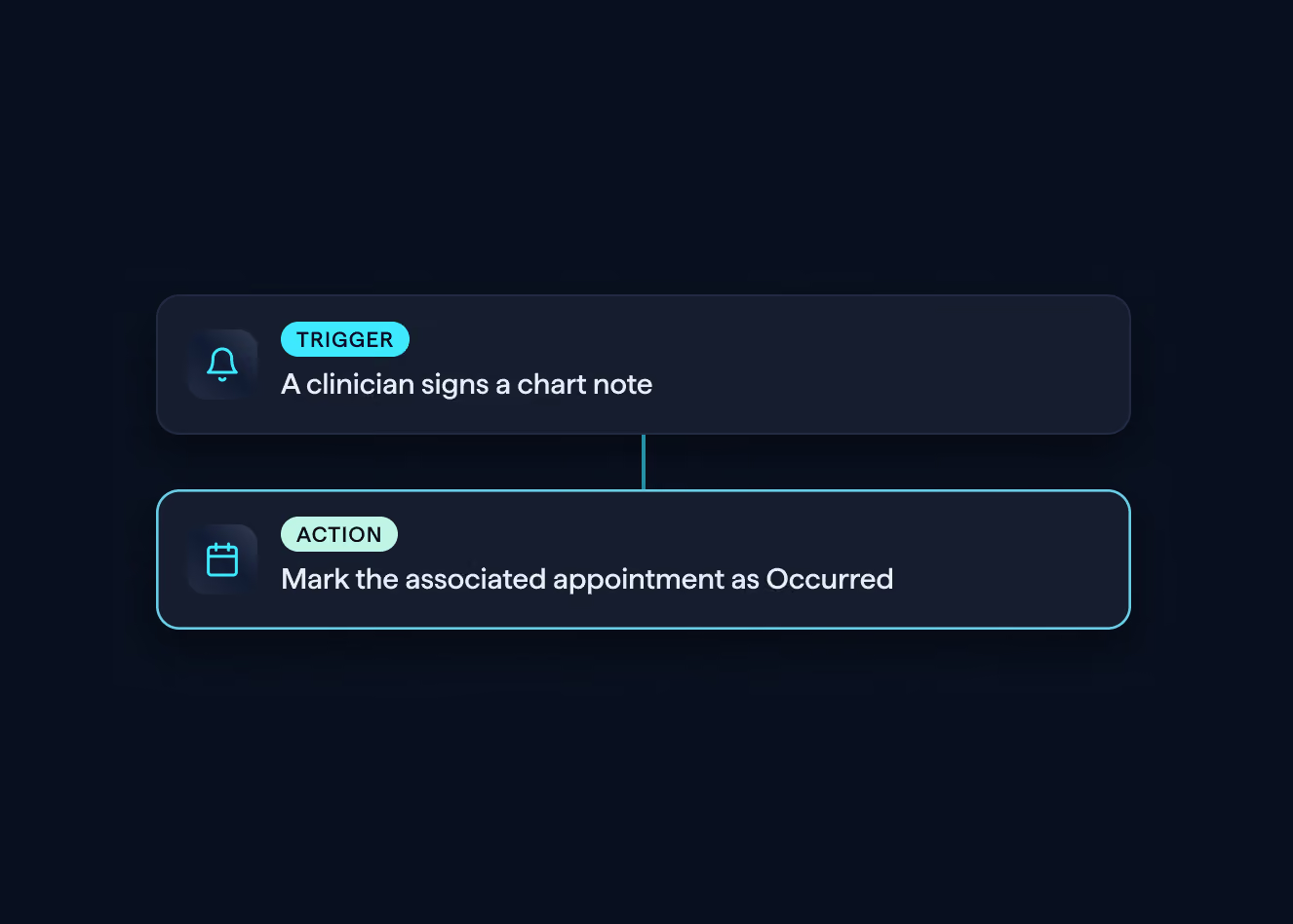
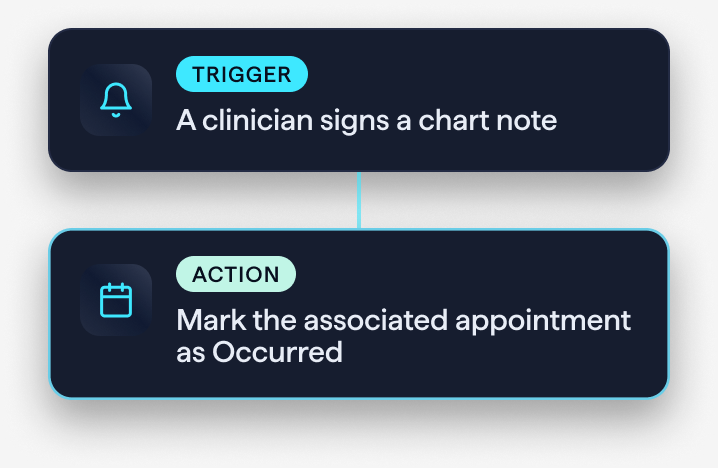
When a clinician signs a chart note, mark the associated appointment as Occurred. When a provider flags that a co-sign is needed, create a task for the supervisor to review the note.
Billing teams
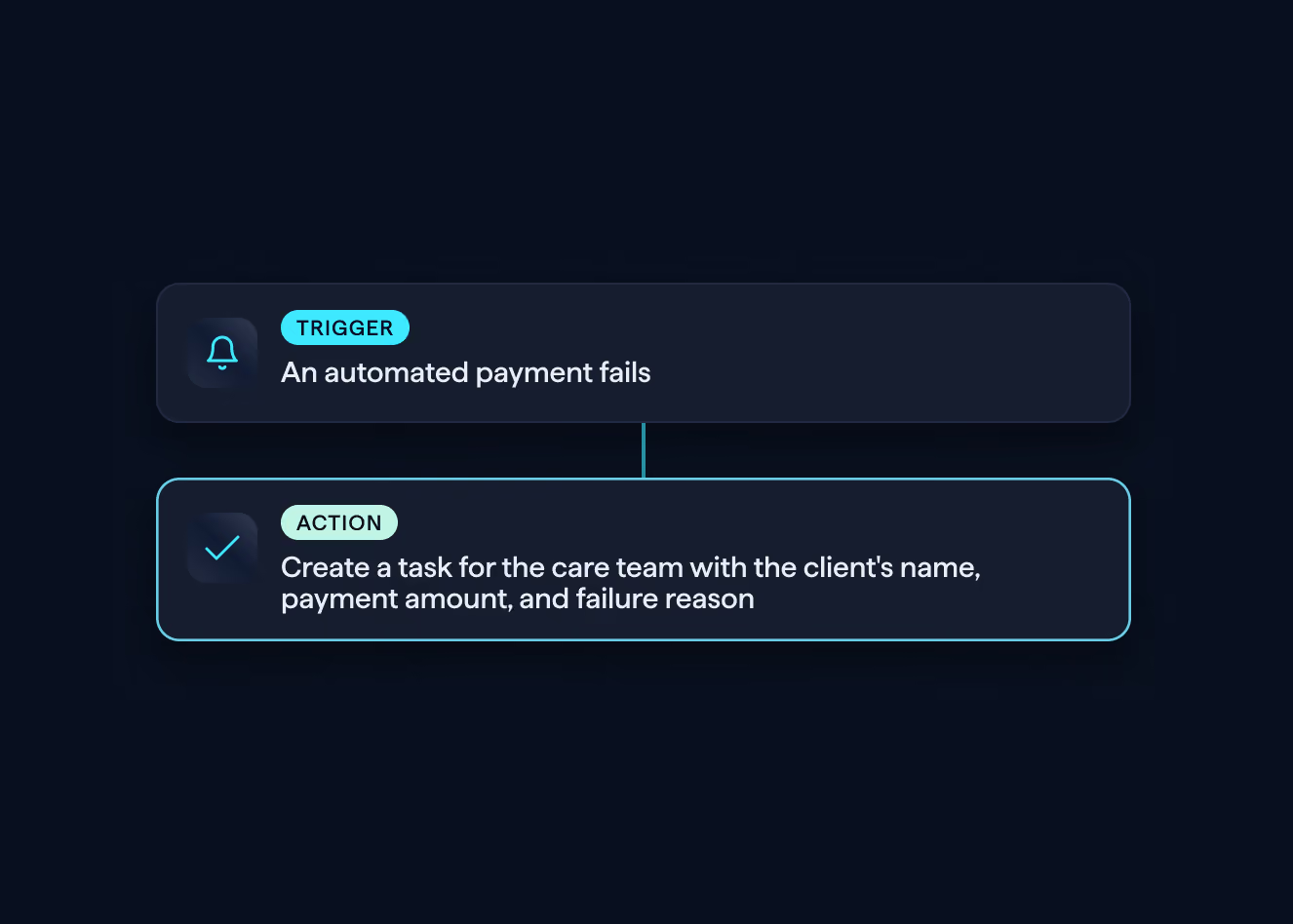
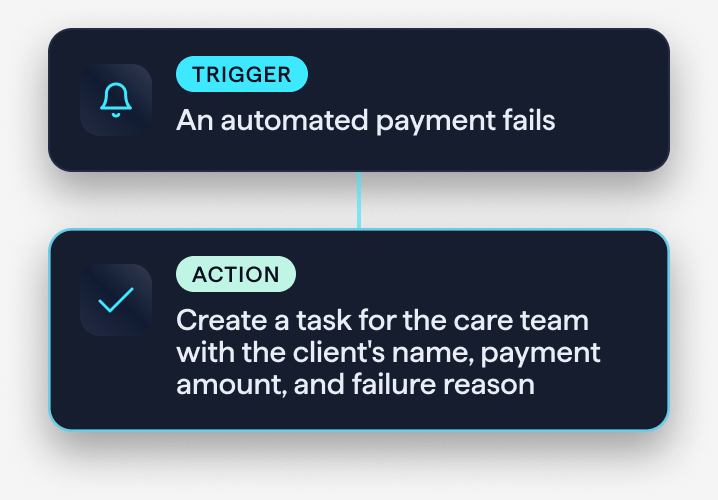
When an automated payment fails, create a task for the care team with the client's name, payment amount, and failure reason. When a card is declined, send a chat and a new billing info form.
Intake and records teams
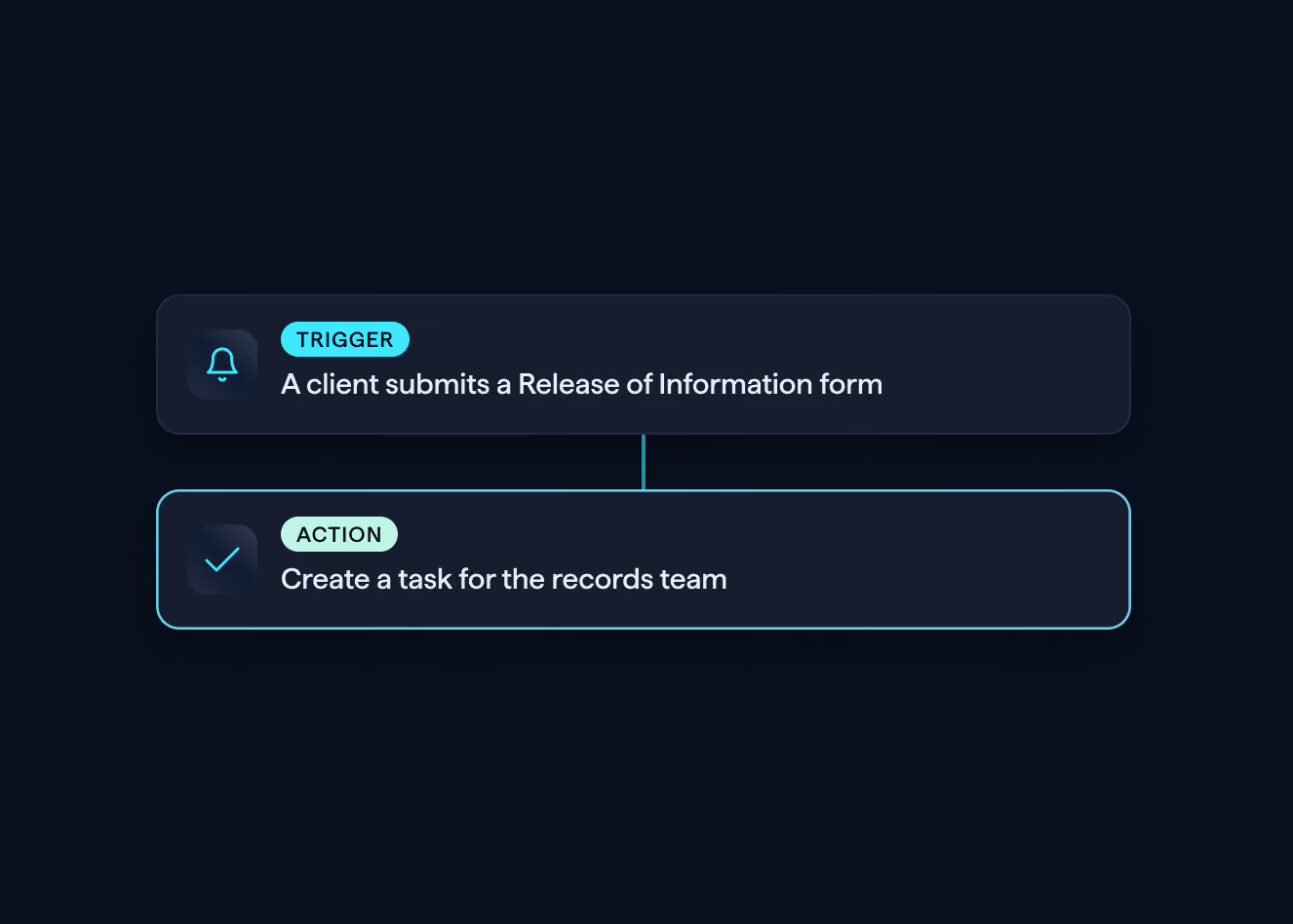
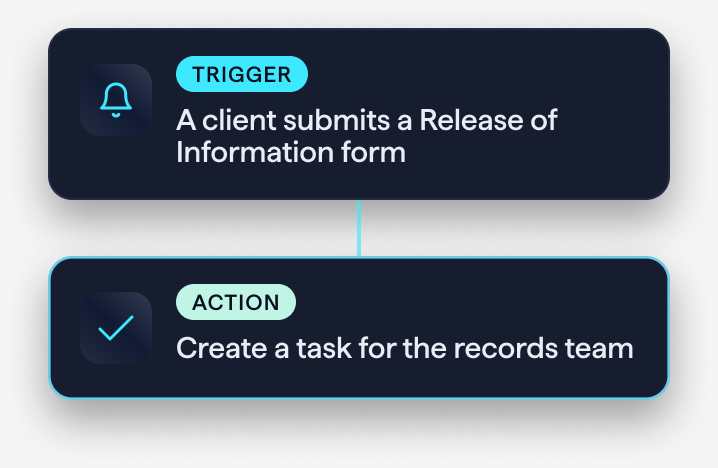
When a client submits a Release of Information form, create a task for the records team. When a new client account is created, add a pre-configured user to the client's care team.
Practice owners and operations leaders
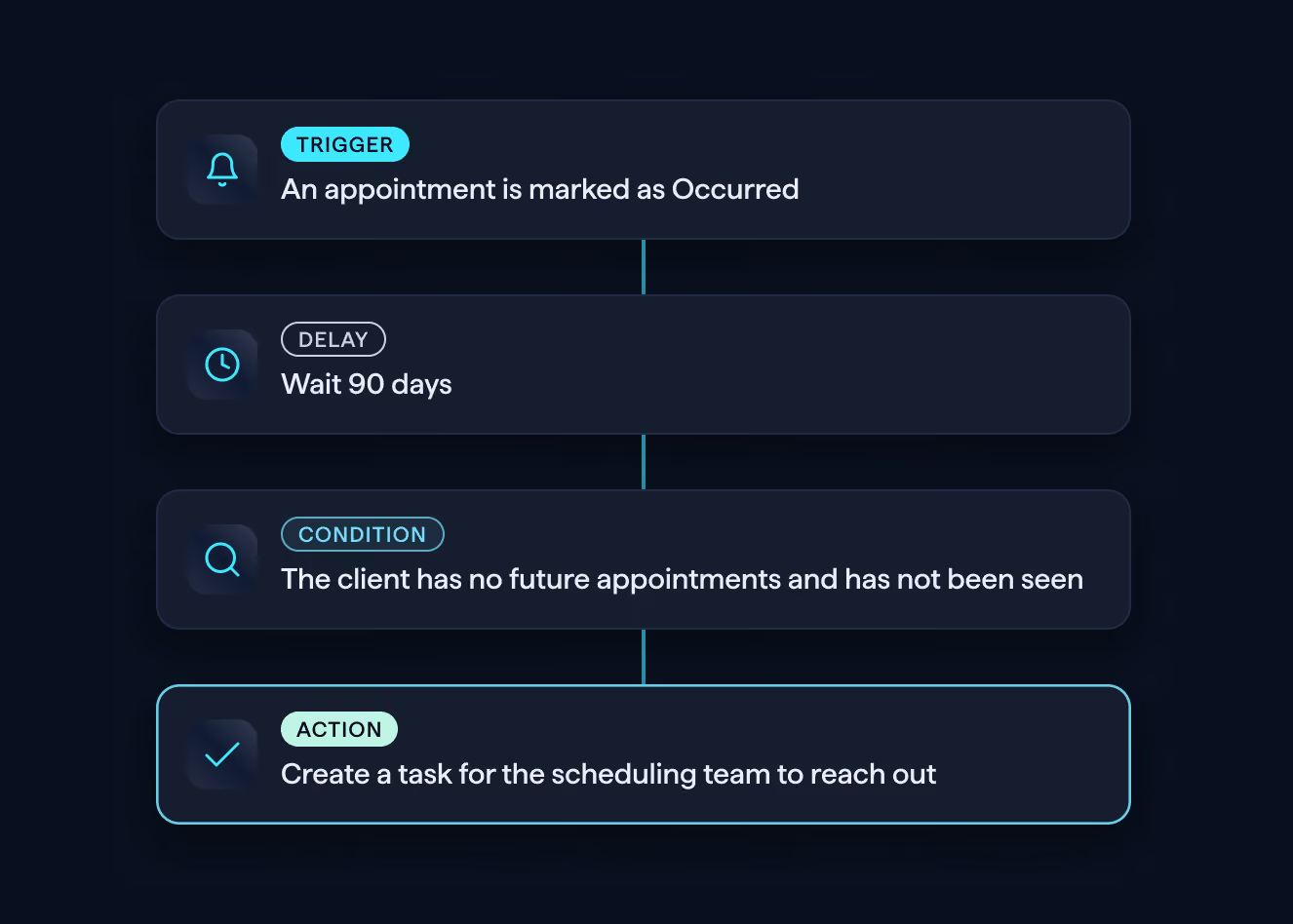
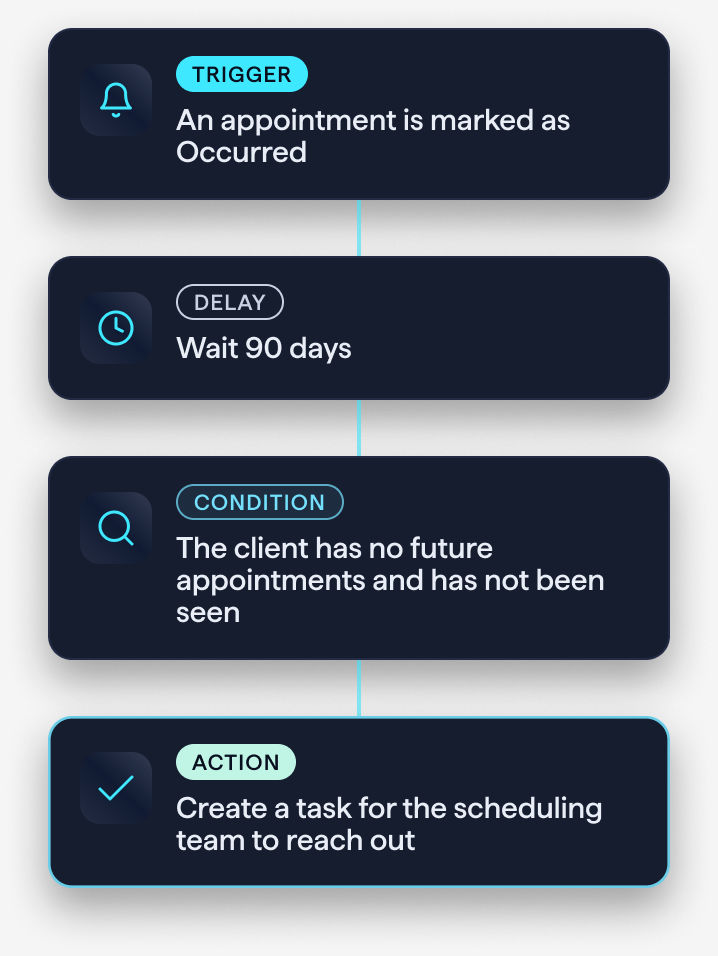
After an appointment is marked as Occurred, start a 90-day timer. If the client has no future appointments and has not been seen, create a task for the scheduling team to reach out.
WHAT YOU CAN HAND OFF
The moments your team handles by hand today
Describe what should happen, and Automate takes care of it each time.
HOW IT WORKS
Describe it, answer a few questions, turn it on
The AI Builder lives inside Healthie, so your team can create and manage automations in one place.
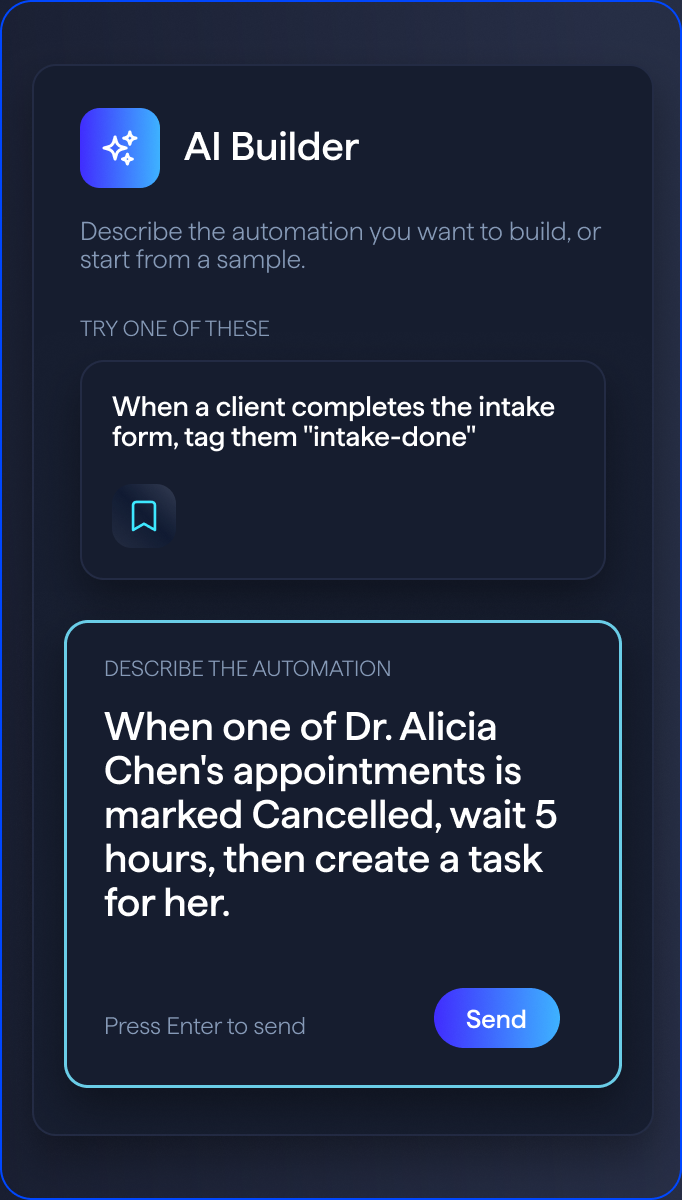
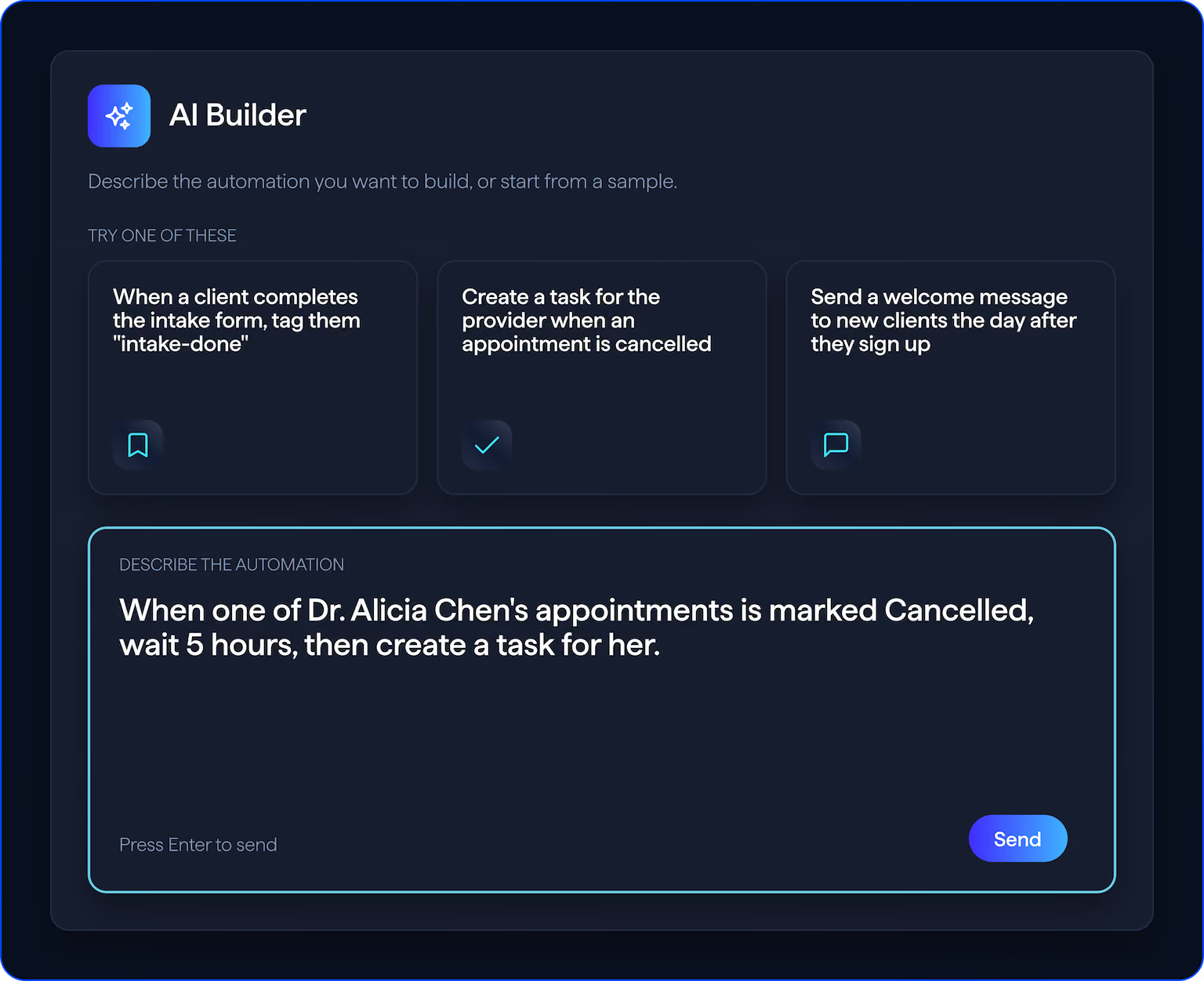
Describe the automation
Type what you want in plain language, the way you would explain it to a colleague.
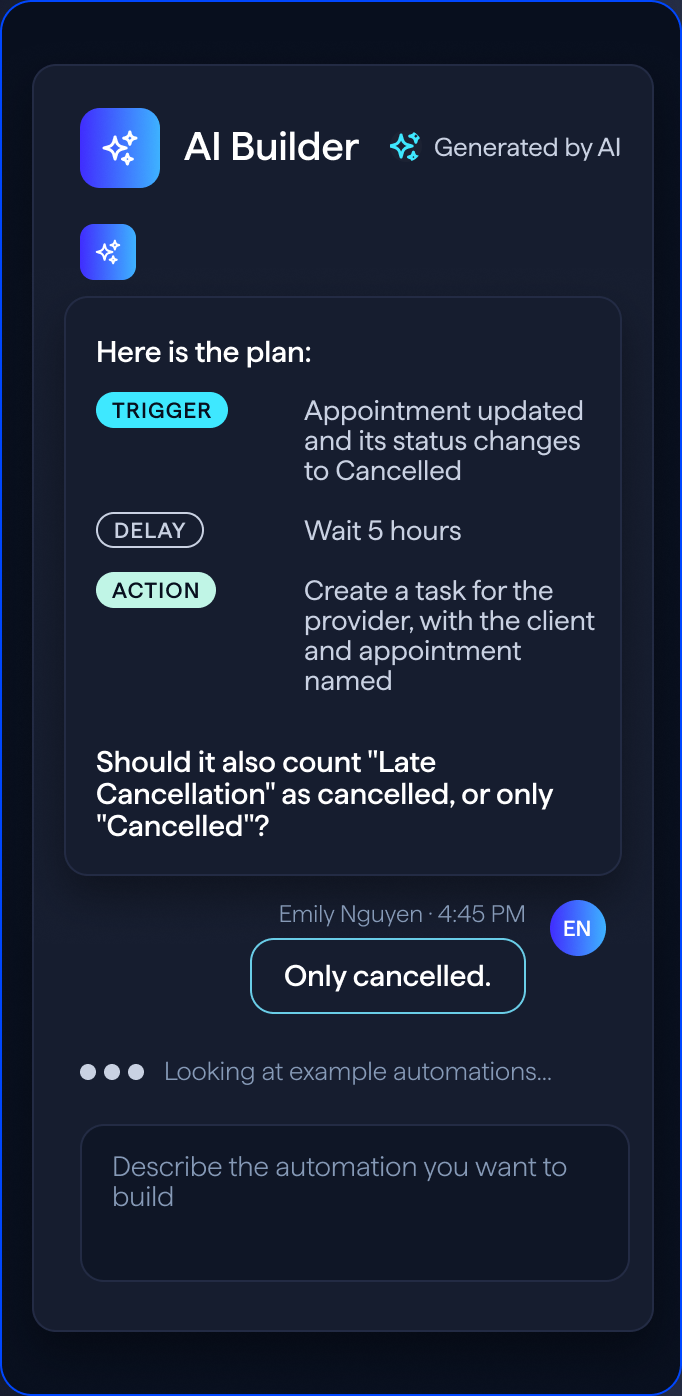
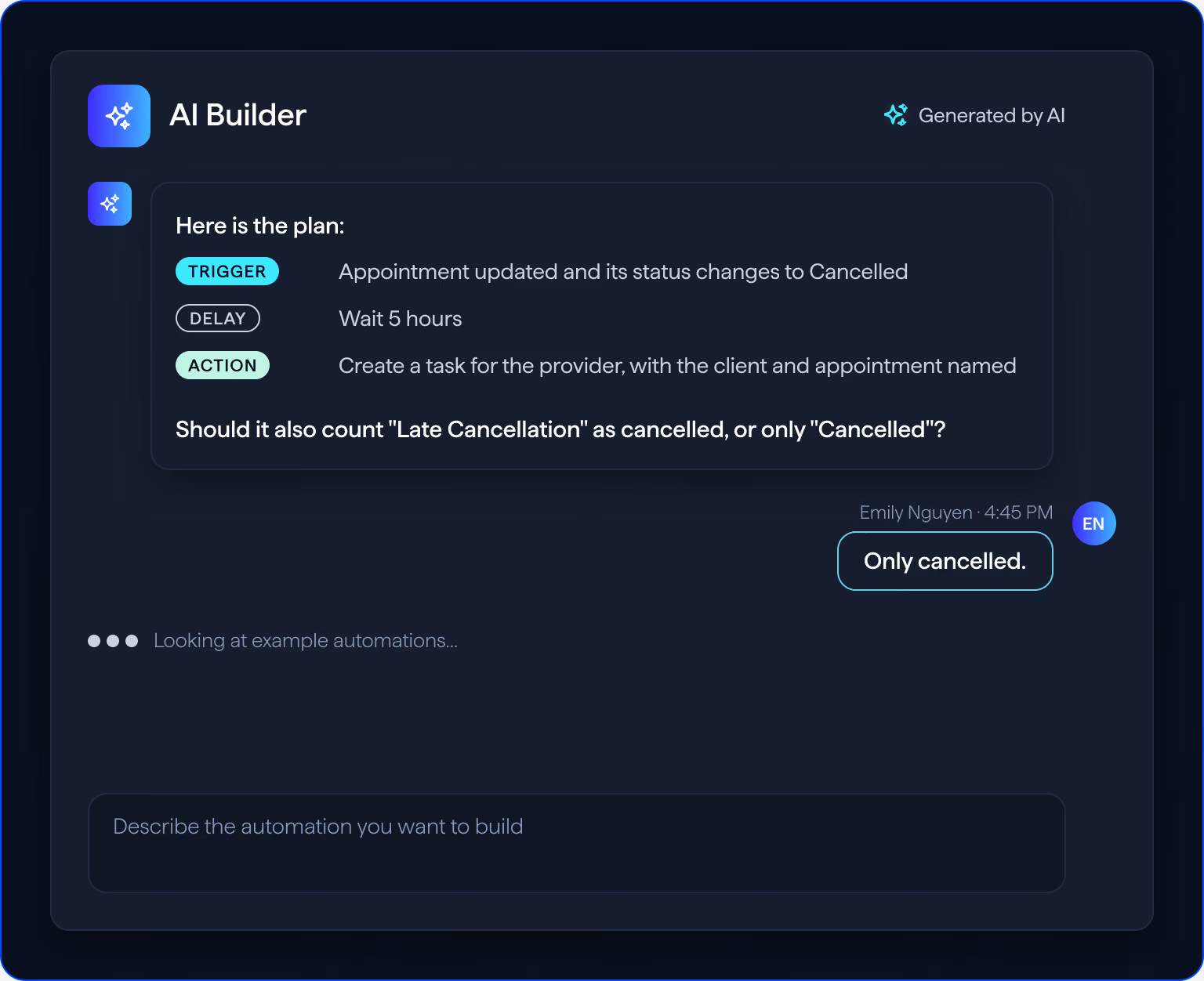
Answer a few questions
The AI Builder asks clarifying questions and offers guidance until the automation is complete.
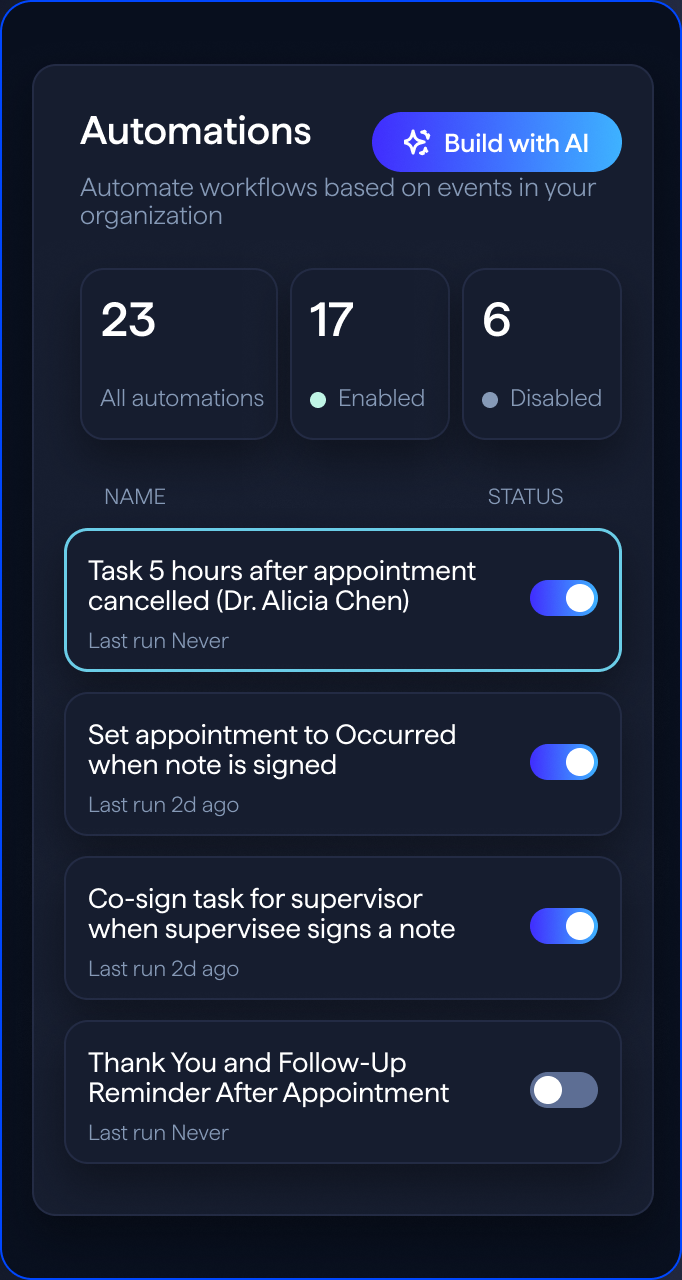
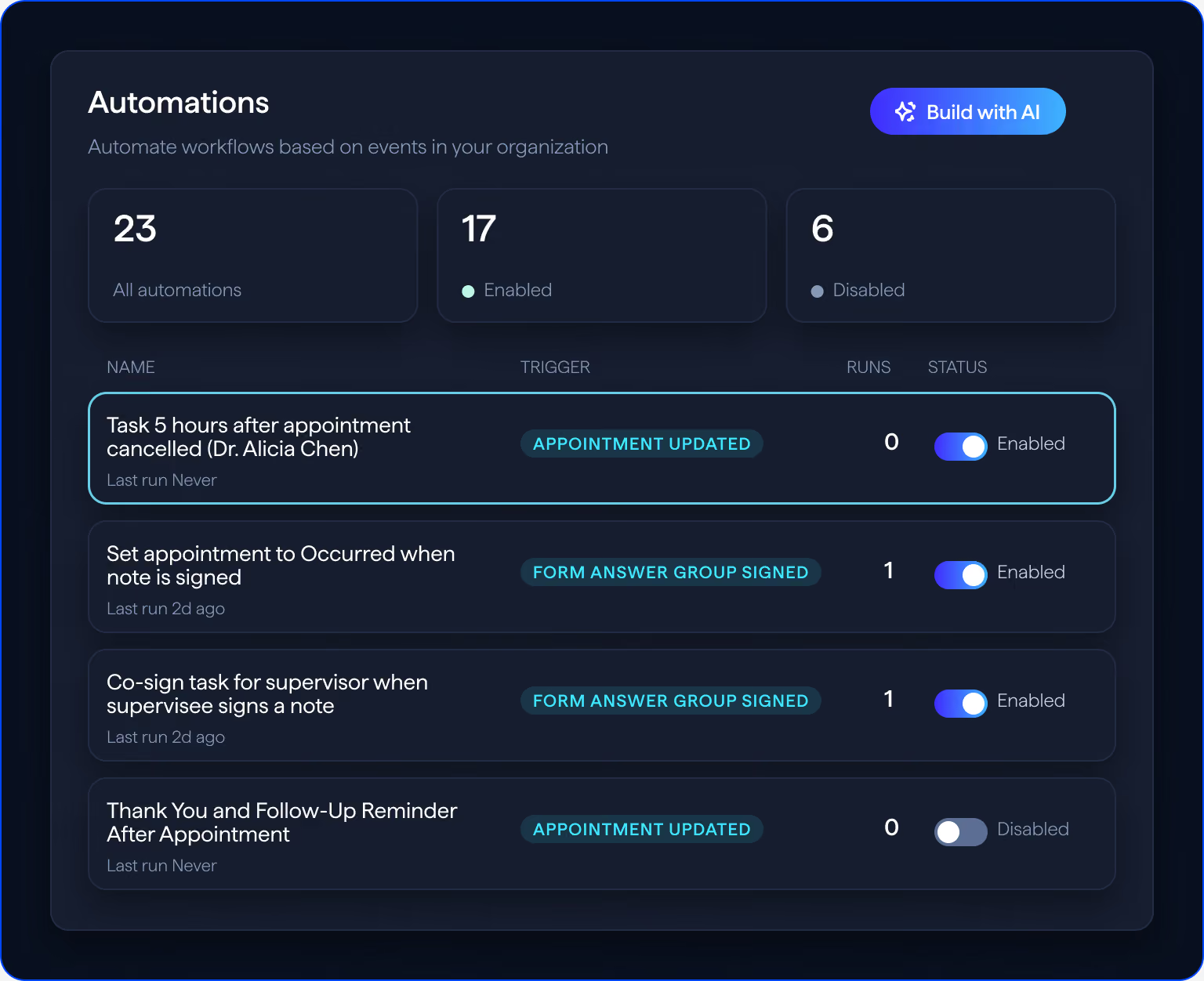
Turn it on
Your new automation is listed on the Automations page, where you can turn it on or off with a toggle.
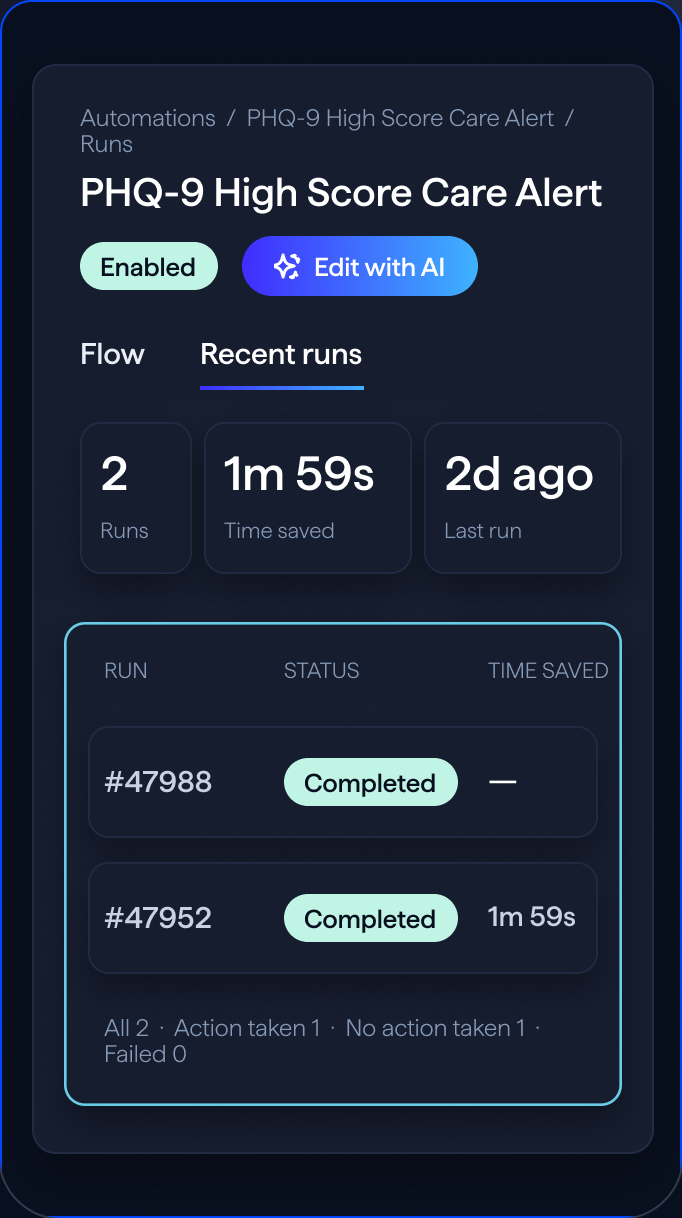
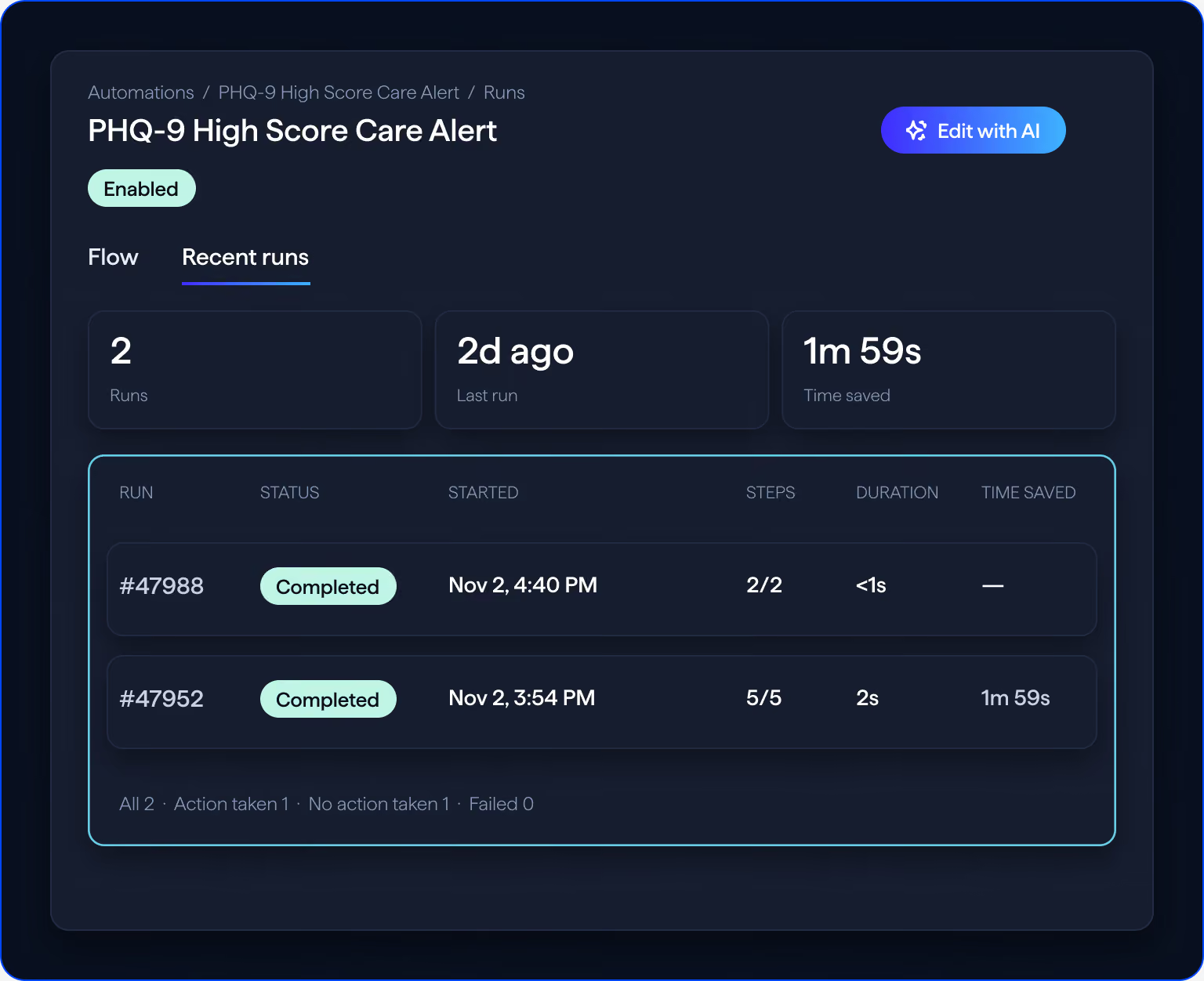
Manage and improve
Review each automation's steps and recent runs, and use Edit with AI to pick up where you left off.
An org owner turns on Automations permissions for each user who builds or manages automations.
BUILDING BLOCKS
Built from steps that match how your team works
Every automation is a series of configurable steps. Automations are rules-based, so they run the same way each time the trigger happens.
- Form submitted
- Chart note signed
- Payment failed
- Client account created
- Appointment status changed
- Wait 90 days
- Look up related records
- Has a future appointment
- Create a task
- Send a chat
- Update a client
- Update an appointment
- Apply a tag
- Request a form
Triggers
Start an automation when something happens in Healthie, such as a form submitted or a payment failed.
Lookups and conditions
Look up related records and check conditions before acting, such as whether a client has a future appointment.
Delays
Wait before the next step, such as 90 days after an appointment.
Actions
Create a task, send a chat, update a client or appointment, apply a tag, or request a form.
Where it fits
Works alongside the tools you already use in Healthie
Keep your built-in tools. Automate covers the event-driven workflows they do not reach, like acting on a form answer, a payment failure, or an appointment outcome.
Intake Flows send onboarding paperwork when a client is added to a group. Scheduled form automations and appointment reminders keep working as they do today.
Describe an automation in Healthie and manage it from the Automations page. In beta as an add-on for Plus plans and above.
Build through an AI assistant in Claude Desktop. It builds and tests in your staging environment, then you import it to production through your browser.
WHAT IT REPLACES
Four things your team no longer does by hand
Automate watches for the event and does the follow-up, so your team can focus on clients.
Follow-up messages
A chat goes out from the right provider when a trigger fires, using your message.
Task creation
Tasks are created and linked to the client record, with a configurable due date and description.
Status and profile updates
Update an appointment, a client's provider, or a billing type when the event happens.
Outside tools and webhooks
Automations run within Healthie, with no third-party tools or external webhooks needed.